Application Management
Step-by-step visual guide to registering and configuring applications in Campus One
Welcome to the visual walkthrough of the Campus One Developer Workspace. This guide is designed to take you step-by-step through creating a new application, managing its configurations inside the app drawer, verifying subdomains, subscribing to webhooks, and understanding the user consent screen.
The Developer Console
When you log in to the developer console at http://localhost:3001/developer/apps, you are welcomed by the Developer Workspace Dashboard. Here you can view all of your active applications, their categories, developer details, client identifiers, and real-time status badges (e.g., live, beta, pending).
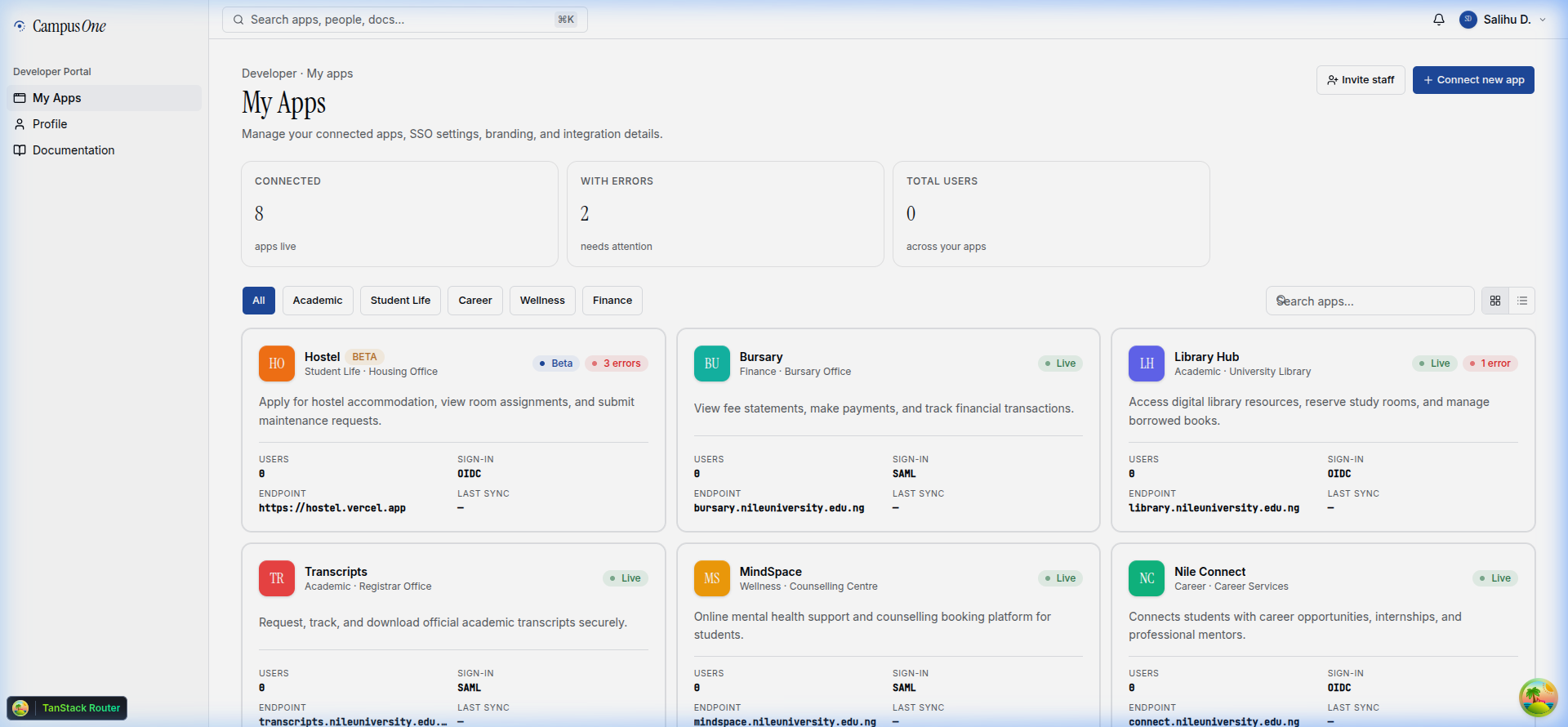
To register a new application, click on the Connect new app button on the top right to launch the registration wizard.
Application Registration Wizard
The wizard will guide you through a clean, multi-step process to securely register your application.
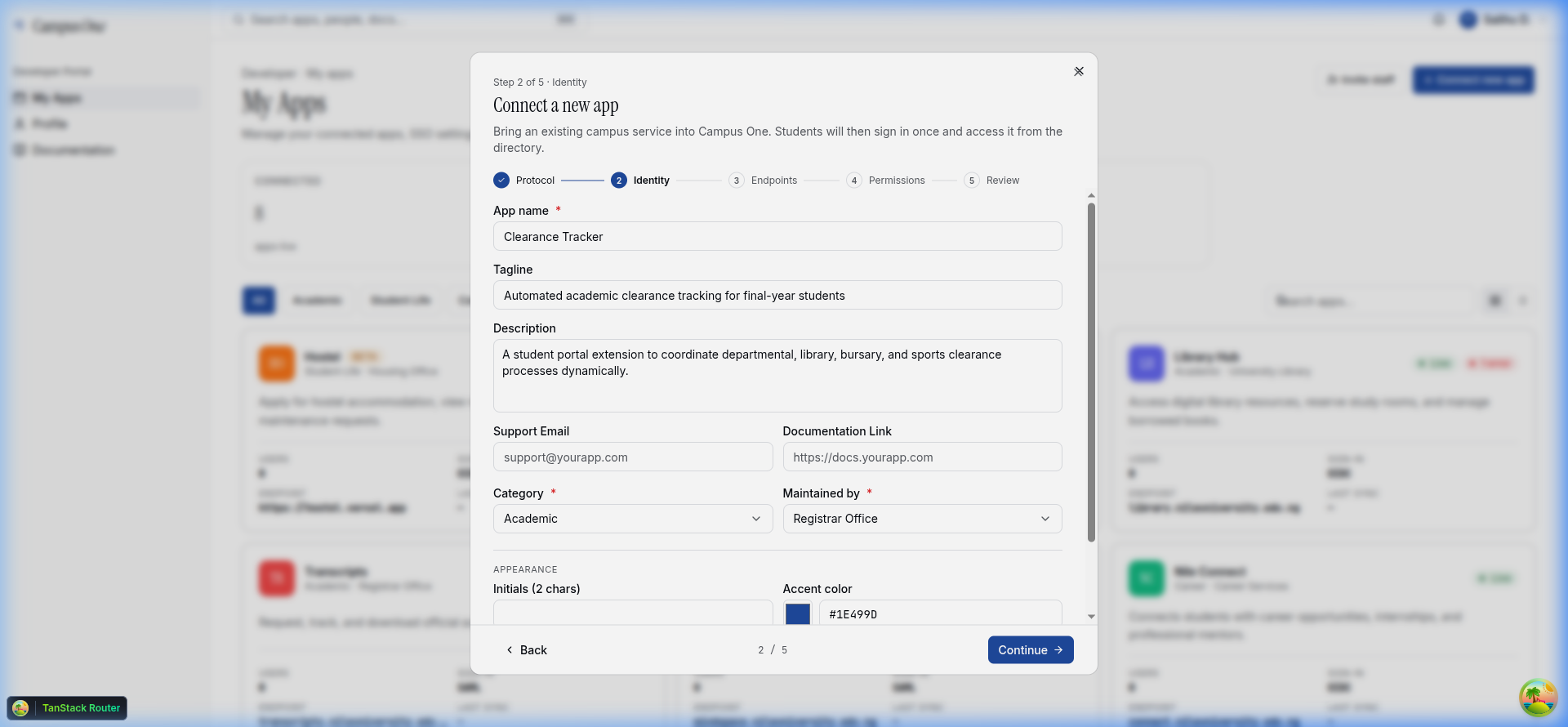
Step 1: General Info & Identity
In this step, specify the core identity and look of your application. These details will be displayed to students on their login consent screens:
- Name: The display name of your application (e.g.,
Clearance Tracker). - Tagline: A short, clear headline explaining what the application does.
- Description: A comprehensive paragraph explaining the purpose of the application.
- Maintained By: Select your maintaining department or unit (e.g.,
Registrar Office,Bursary,Library). - Accent Color & Initial: Customize the theme color of your application's portal cards and login initials to align with your brand.
- Category: Select the primary focus area of your application (e.g.,
Academic,Finance,Services).
Step 2: Enrolling Endpoints & Subdomains
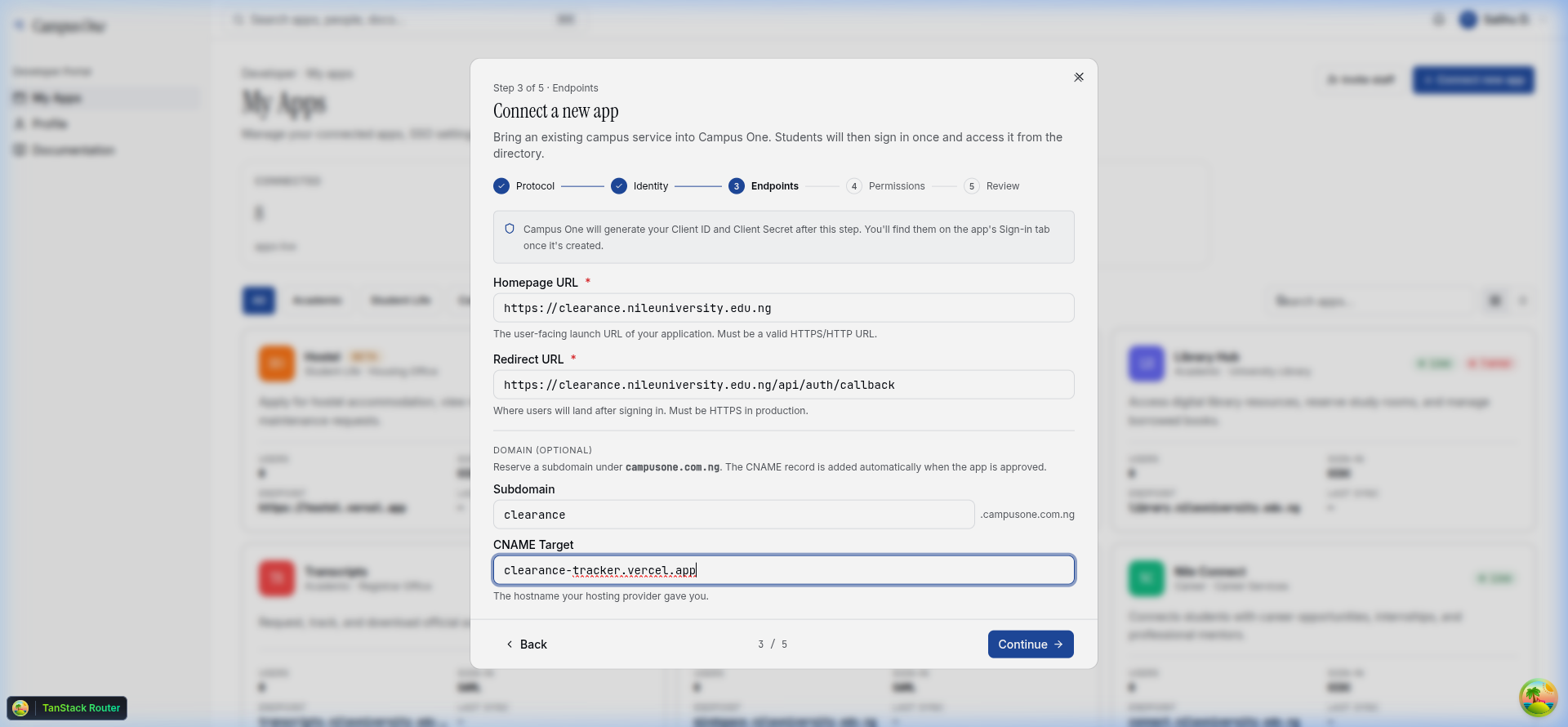
Next, define how and where your application is hosted:
- Homepage URL (Required): The public frontend home page of your application. Once configured, this becomes the primary launch link.
- Redirect URL (OIDC Callback): The backend authentication callback endpoint where Campus One redirects users with verification tokens after successful sign-in.
- Campus One Subdomain: Request a custom subdomain under
*.campusone.com.ng(e.g.,clearance). This provides a seamless, trusted branding experience. - CNAME Target: Specify your hosting target (e.g.,
cname.vercel-dns.comor custom server IP) to enable automated DNS mapping.
Step 3: SSO Protocol & Scope Permissions
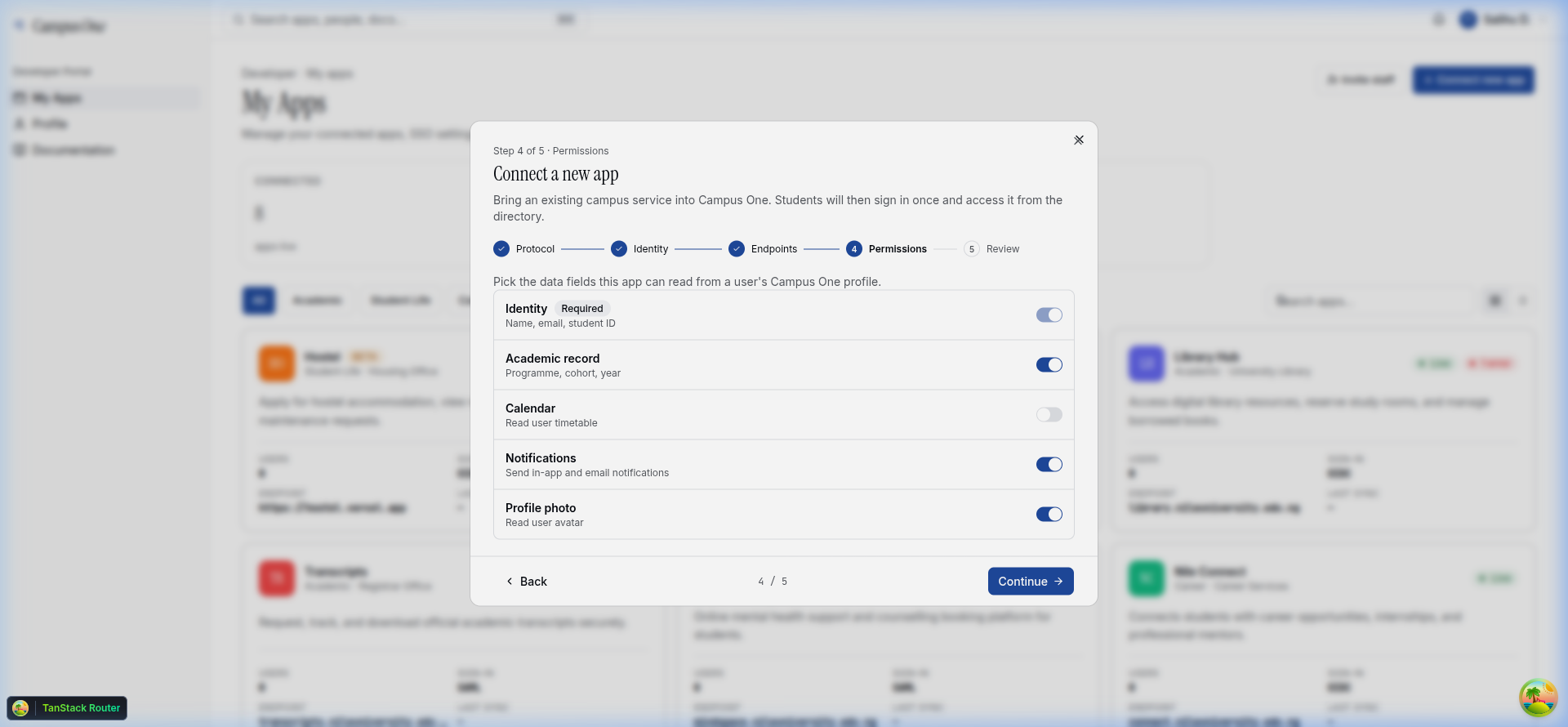
Choose your secure authentication protocol and request the specific student datasets required for your application to function:
- Protocol: Select OIDC — currently the only live protocol. SAML 2.0 and OAuth 2.0 are selectable as placeholders but are planned, not yet available, so choose OIDC for any app you intend to ship.
- Scope Permissions Checklist: Check the specific scopes needed. Minimum recommended:
Profile(display name) andEmail. Additional scopes includeAcademic(student ID, level, faculty, department),Notifications,Events,Calendar, andRoles. See the full permissions reference.
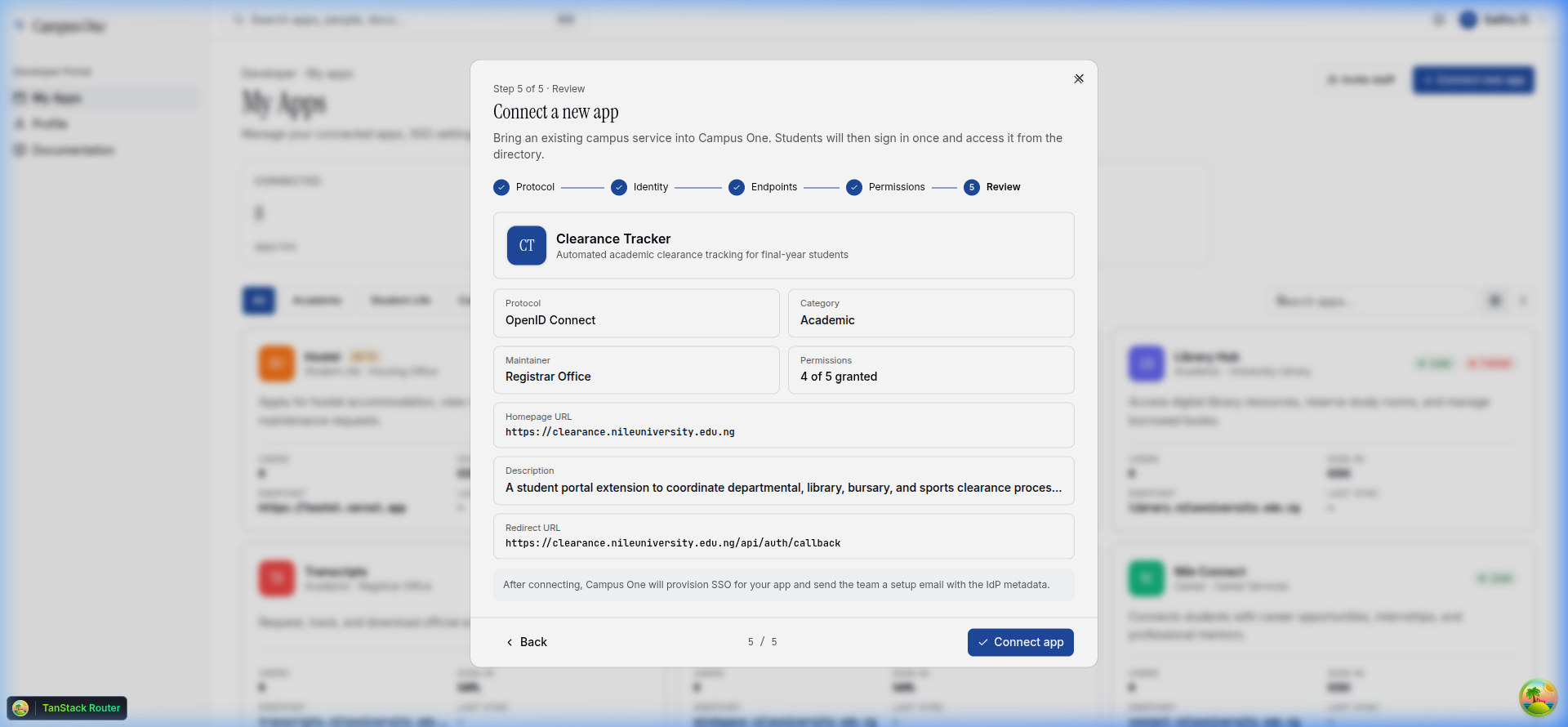
Step 4: Final Summary Review
Review your application details, protocol selections, and requested scopes. Click Connect app to finalize the registration and save it to the database.
Configuring Applications via the App Drawer
Once your application is created, clicking on its card in the Developer Dashboard opens a robust Slide-out App Drawer on the right side of the screen. The drawer organizes configurations into distinct tabs.
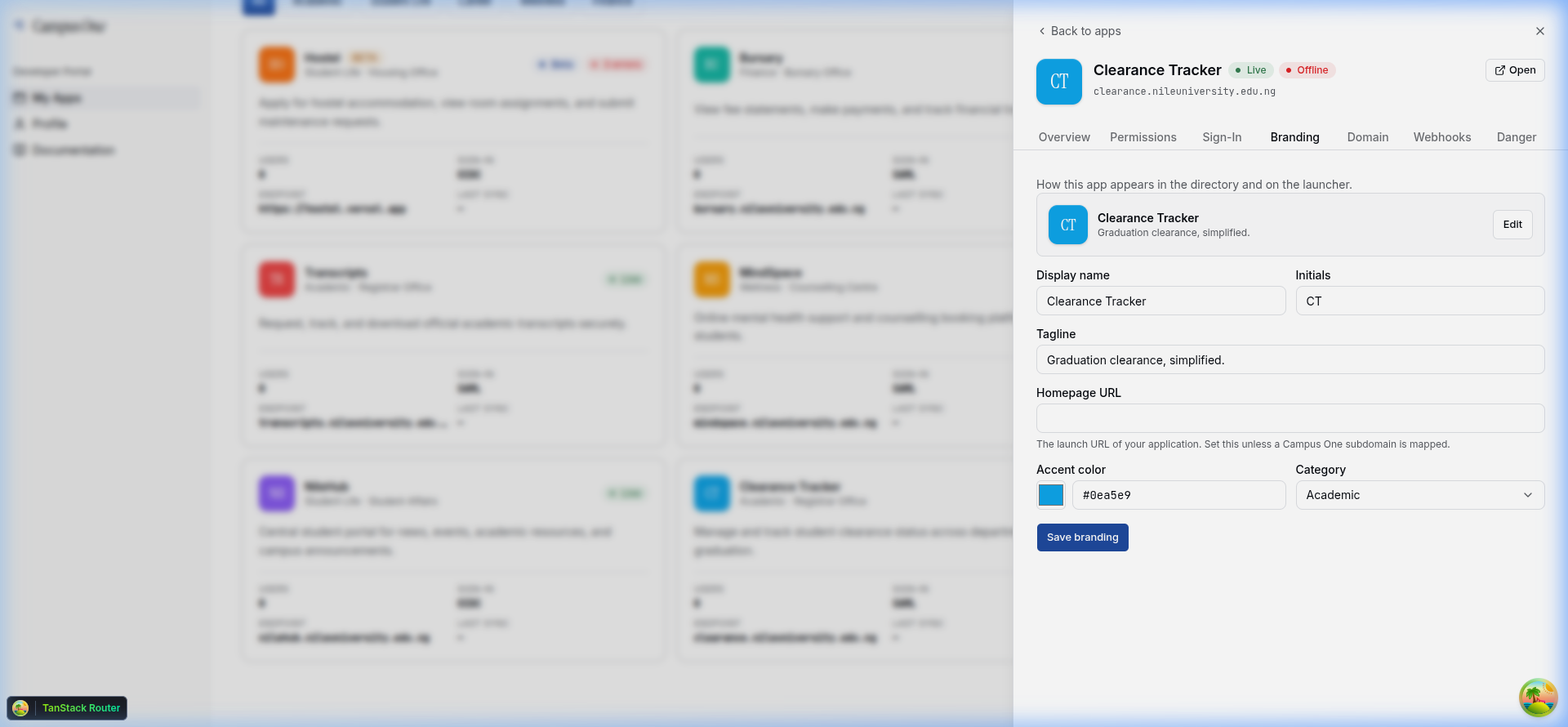
1. Branding Tab
Manage public metadata and branding styles. You can update the tagline, category, accent color, maintaining owner department, and the required Homepage URL here.
[!WARNING] Once a custom Campus One subdomain is approved and verified, editing the Homepage URL is locked by default to ensure routing integrity.
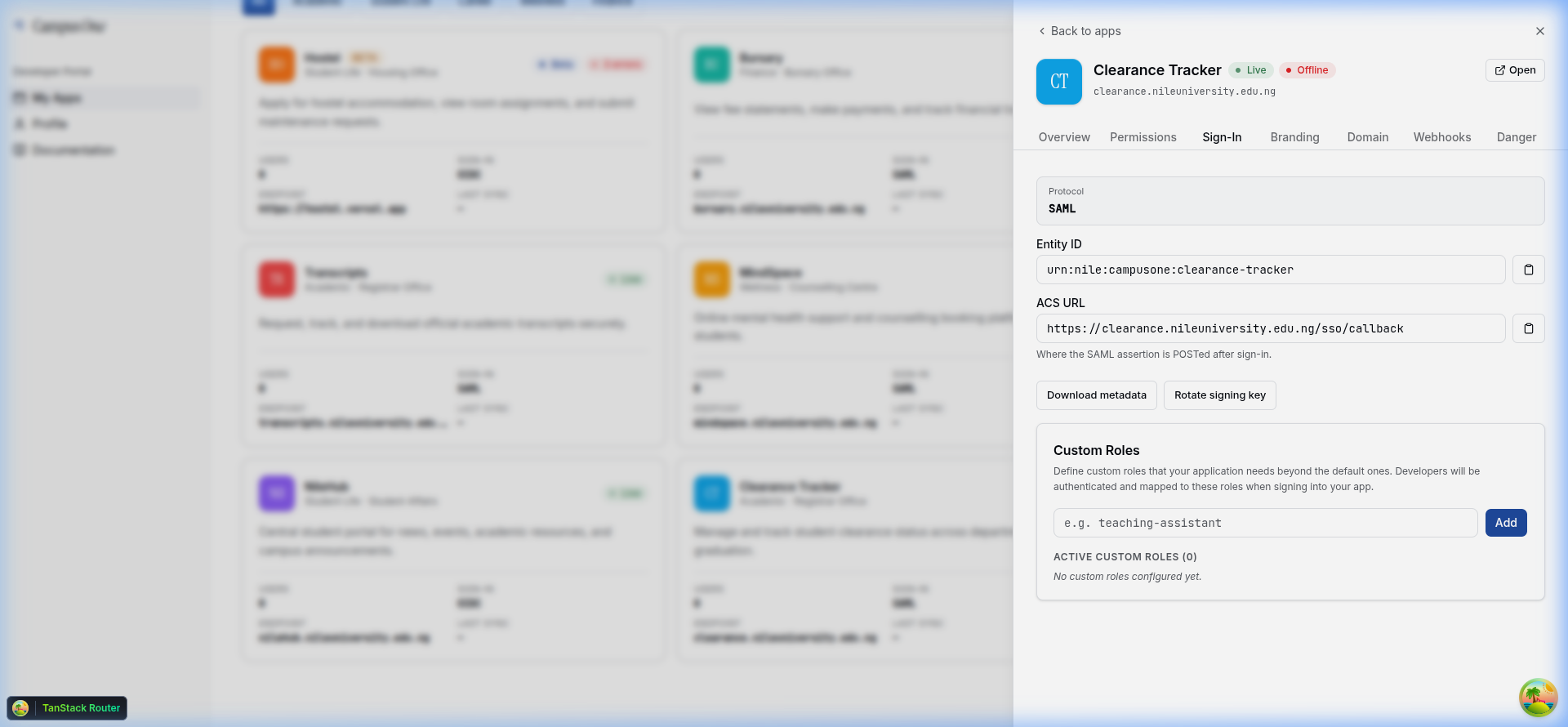
2. SSO Credentials Tab
Retrieve and manage your client credentials.
- Client ID: The public identifier for your app.
- Client Secret: The sensitive key used to sign exchange tokens. Store this securely in your
.envasCAMPUS_ONE_CLIENT_SECRET. - Credential Rotation: Click Rotate client secret or Rotate encryption key in case of credential leaks.
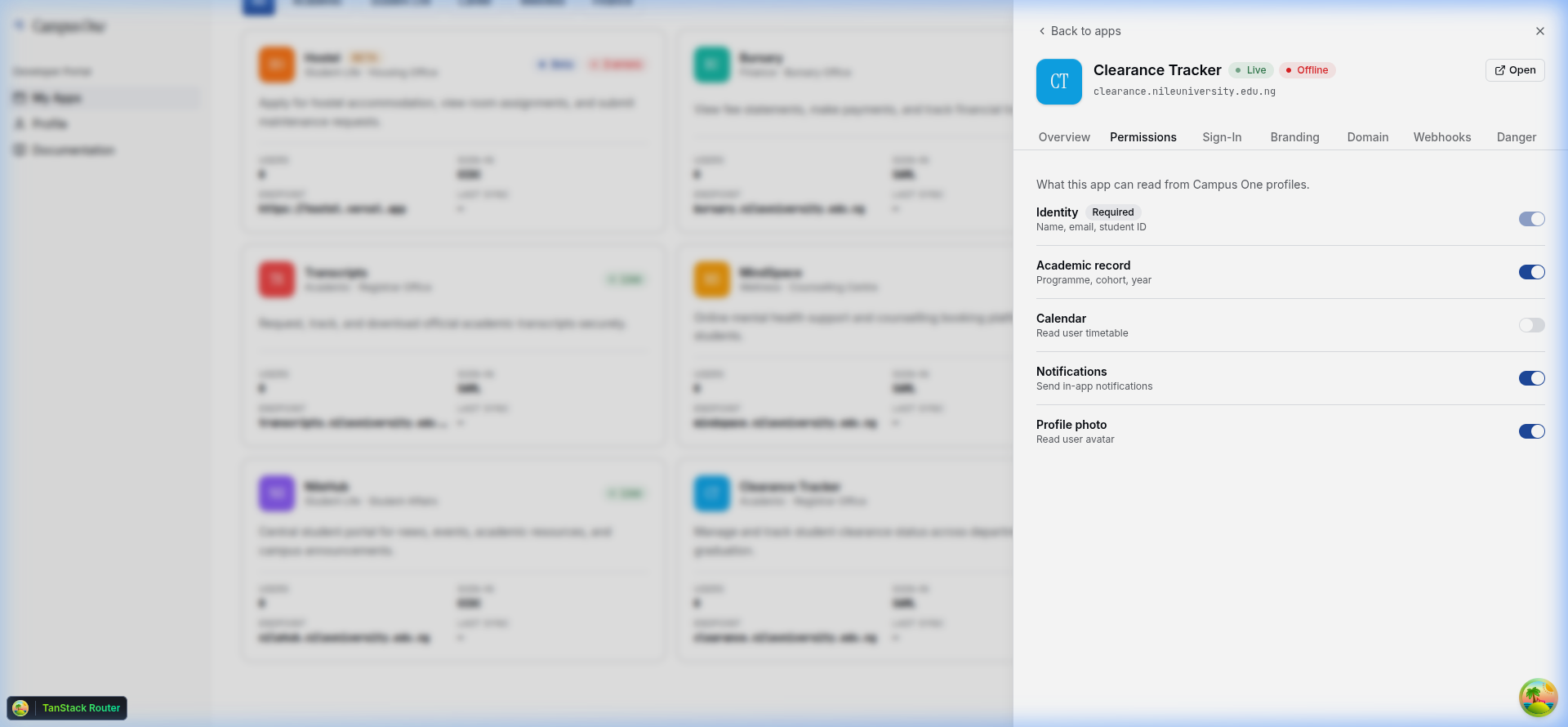
3. Scope Permissions Tab
Add or remove requested scopes as your application evolves. Toggling permissions here dynamically updates the list of attributes requested on the user authorization screen.
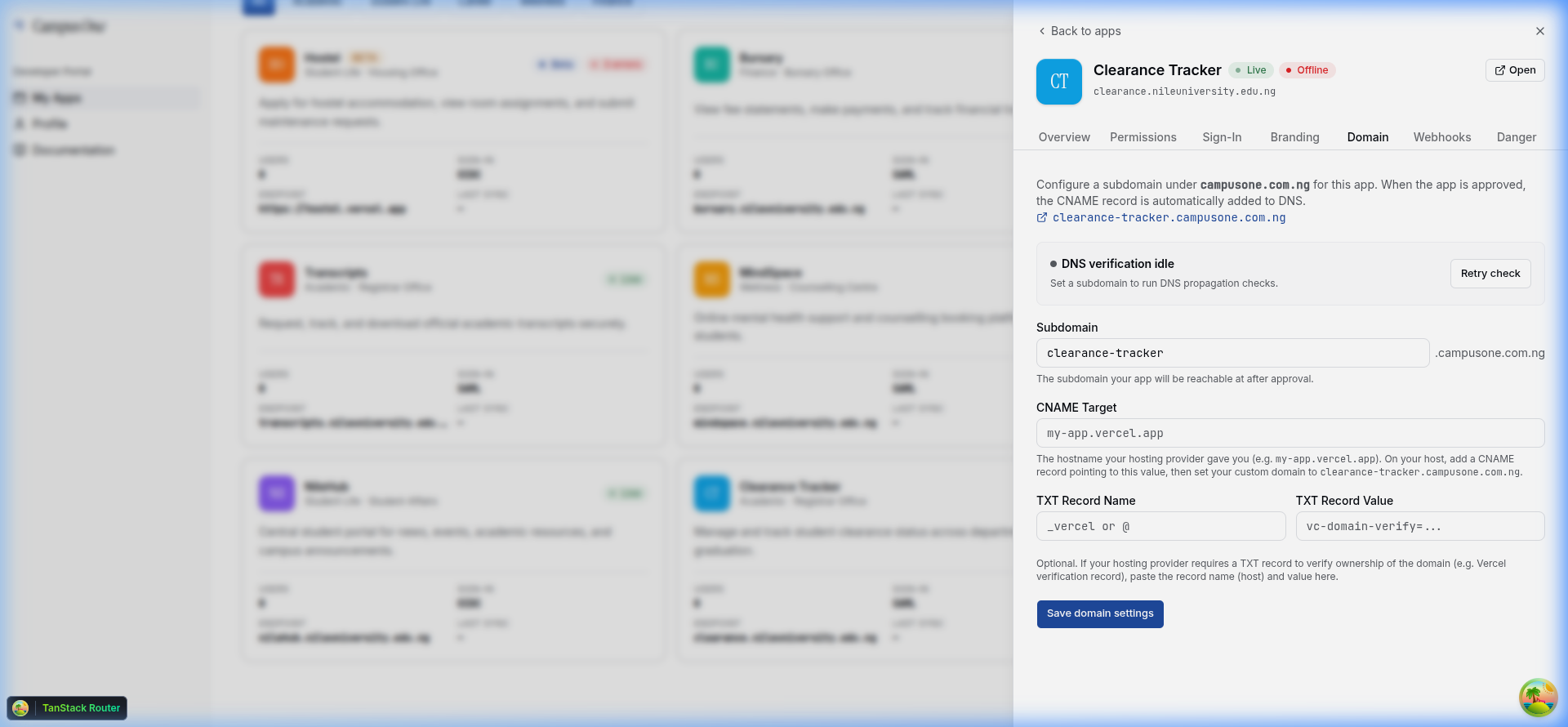
4. Custom Domain Tab
Manage your custom *.campusone.com.ng subdomain.
- Real-time DNS check: Campus One utilizes Cloudflare's DoH (DNS-over-HTTPS) API to verify CNAME and TXT propagation.
- Self-Service Verification: Once CNAME records are propagated, click the verification button. Successfully propagated domains automatically lock the fields to prevent accidental edits.
- Throttling Protection: Visual status cards include a 15-second visual cooldown and a 5-check limit per drawer session to prevent API rate-limiting issues.
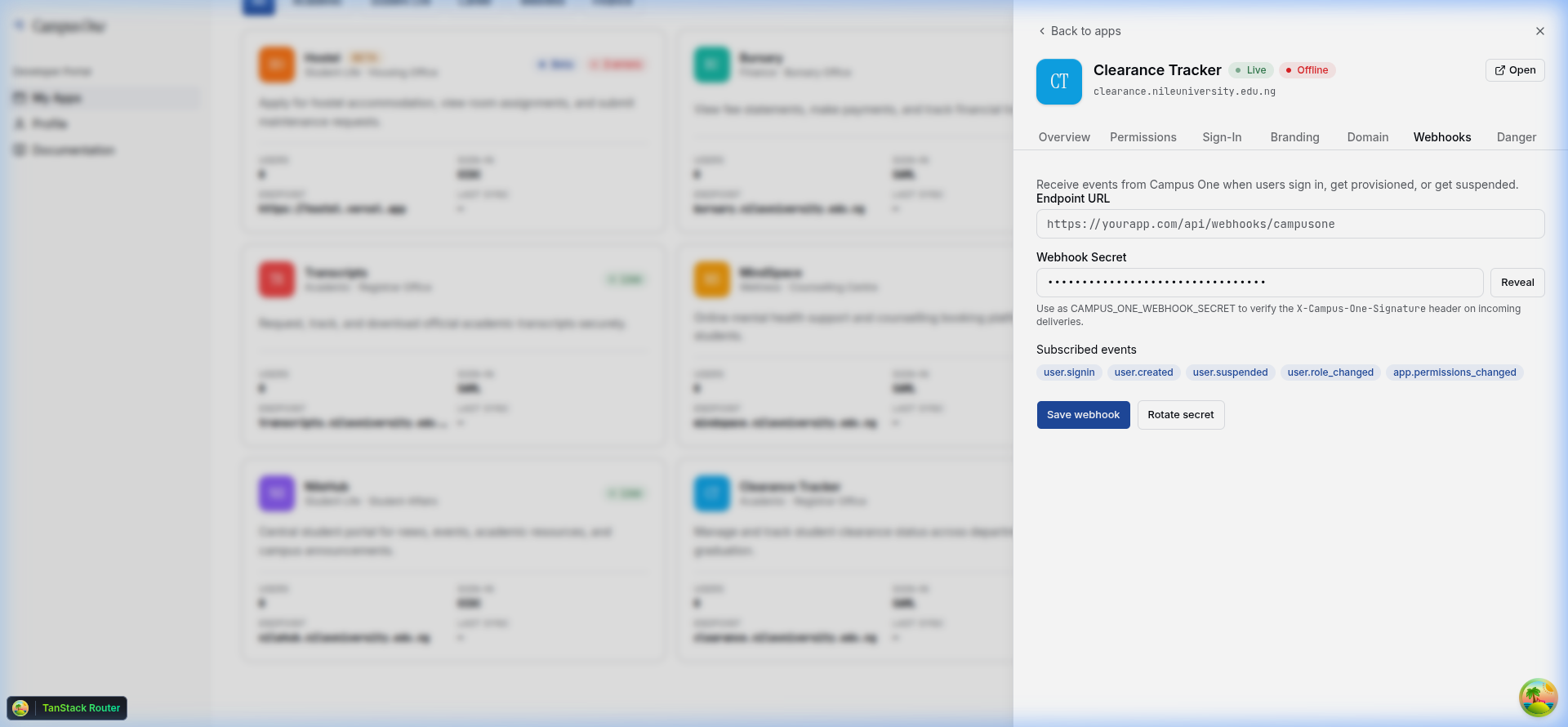
5. Webhooks Tab
Expose an HTTPS endpoint on your backend to receive real-time updates from Campus One:
- Subscribe to important events (e.g.
user.role_changed,user.created). - Copy the Webhook Secret to verify headers securely.
6. Access Tab
The Access tab controls who may use your app and what standing they have inside it. Add a staff member or external user, then assign roles to them:
- Your custom roles (defined in the Sign-In tab, e.g.
editor,tutor) — fine-grained, app-specific permissions. Toggling these is sent to your app in theroles/custom_rolesclaims. unit_admin— the reserved, platform-wide role for "department head / app manager" personas. It does two things at once:- It is sent to your app exactly like a custom role, so you can gate your own admin screens on it.
- It makes that user an access admin for your app — they can open Managed access and grant, revoke, and assign roles to other staff and students on your behalf.
To promote someone, just click the unit_admin chip next to their name. You don't have to pre-create the role — it is always available. If you'd rather grant it at invite time, invite the staff member and select unit_admin among their roles for the app; the grant is applied before their first sign-in.
[!NOTE] Only you (the app owner) or a Campus One platform admin can assign
unit_admin. Access admins you create can manage everyone else's roles but cannot mint or revoke other unit admins. See the full claim contract in App-Specific Custom Roles → the reservedunit_adminrole.
Student Consent & Authorization Screen
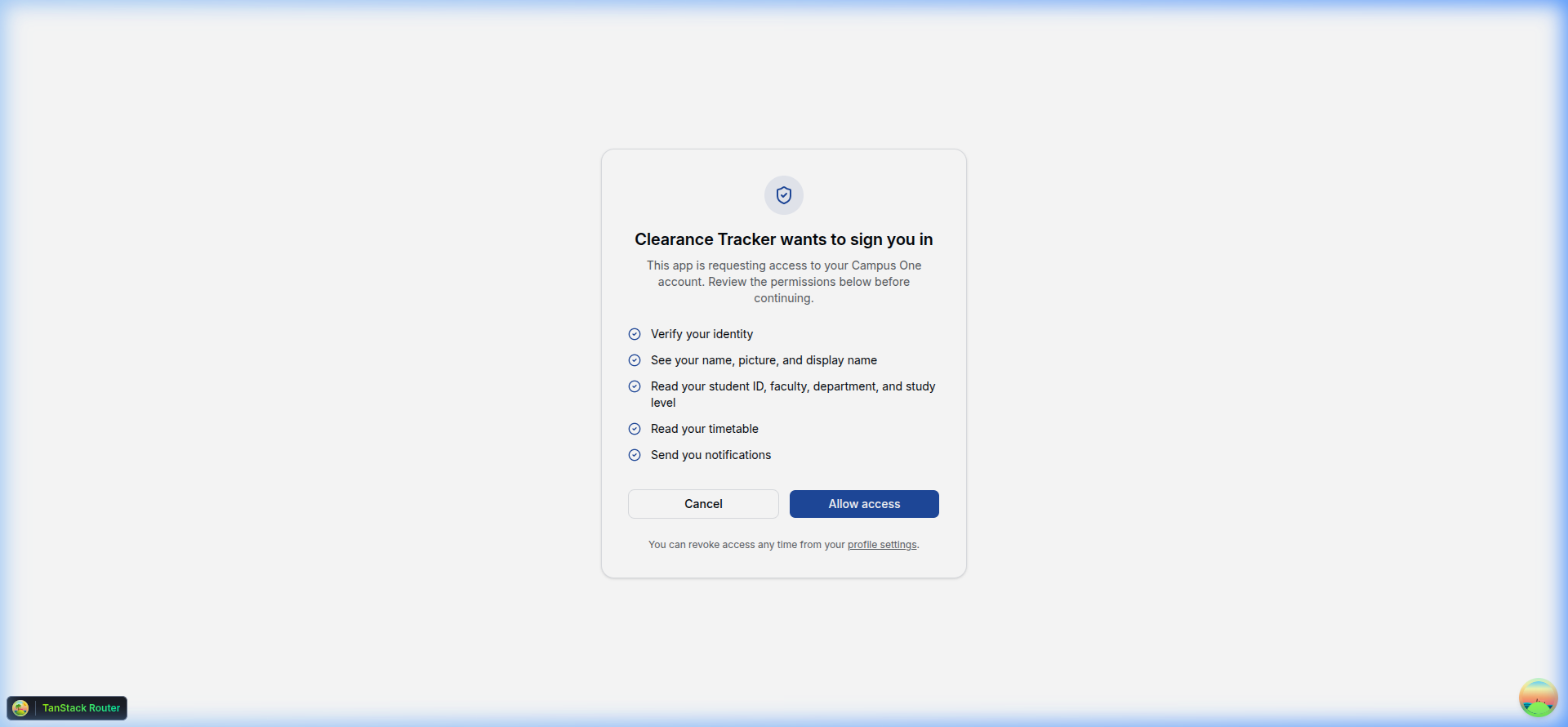
When a student signs in to your application for the first time via Campus One, they are presented with a premium, reassuring OIDC User Consent Dialog.
This screen:
- Dynamically pulls and renders your application's custom accent colors and brand initials.
- Lists the exact permissions requested by your application.
- Empowers students to explicitly Allow access or Cancel authentication.
Best Practices for Developers
[!TIP]
- Always run your production applications over
HTTPSto prevent token interception.- Store the Client Secret and Webhook Secret in secure environment variables, never commit them to public code repositories.
- Implement state parameters in your OIDC authentication requests to protect against CSRF (Cross-Site Request Forgery).